


Best free Auto Clicker [Chrome Extension]
April 1, 2026Macro Recorder for Chrome — Automate mouse and keyboard actions on any Web Page

If you spend time doing the same clicks, keystrokes and form fills in your browser every day, there’s a better way. Macro Recorder for Chrome is a free Chrome extension that records your mouse movements, clicks, keyboard inputs and page scrolling — then replays them automatically, as many times as you need. No coding. No complex setup. Just record, play, and let the macro do the work.
🤔 What Is Macro Recorder for Chrome?
Macro Recorder for Chrome is a lightweight browser extension that captures everything you do on a web page — mouse movements, left and right clicks, double clicks, text input, keyboard shortcuts, and scrolling — and replays it with precision. Think of it as a DVR for your browser actions. Hit record, do your thing, stop, and then play it back whenever you want. The extension even works across page navigations: if a click takes you to a new page, both recording and playback continue seamlessly. During playback, a red visual cursor moves across the screen following the exact path you recorded, so you always know what the macro is doing. Every click is highlighted with a red flash effect for clear visual feedback.
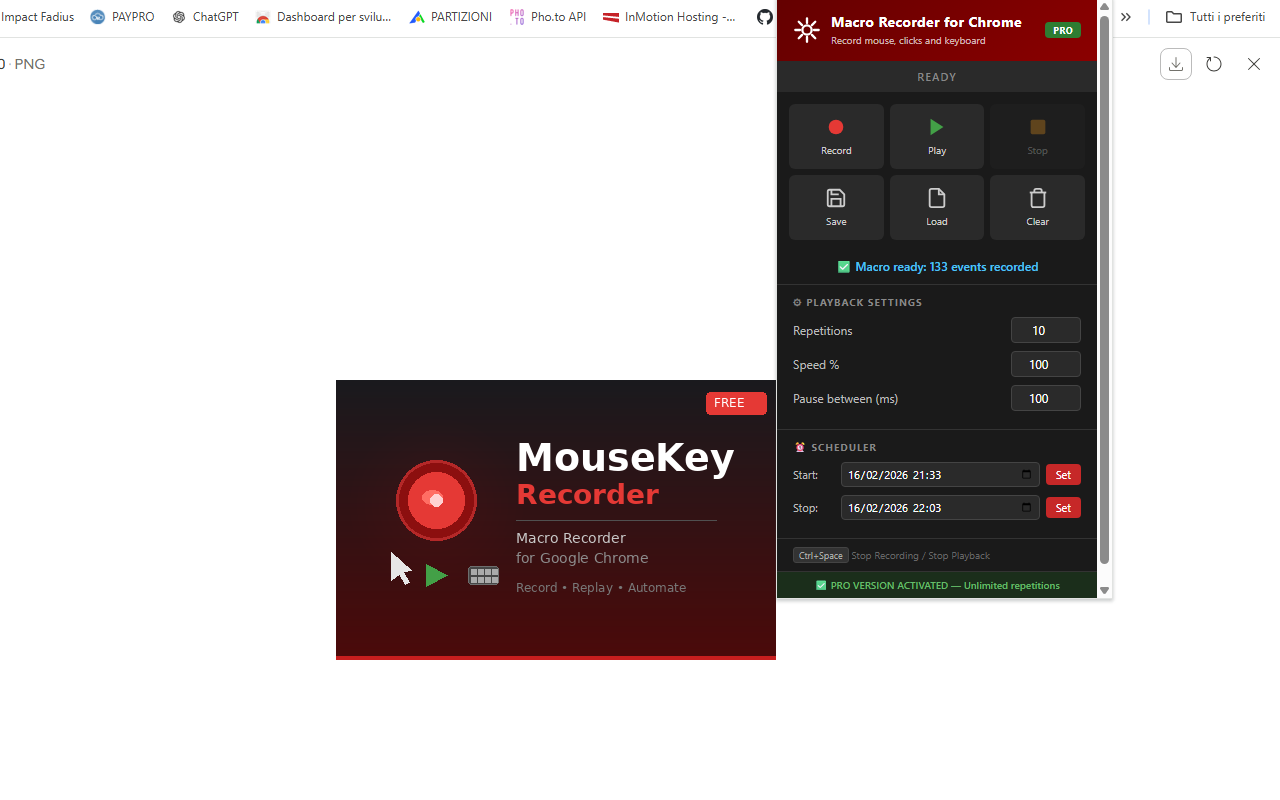
📋 How to Use Macro Recorder for Chrome
Getting started takes less than a minute:
1. Install the extension Download it for free from the Chrome Web Store and pin it to your toolbar.
2. Record your actions Navigate to any web page, click the extension icon and press the Record button. The popup closes and a red “⏺ RECORDING” badge appears in the top-right corner of the page. Now just interact with the page normally — move the mouse, click buttons, type text, scroll, navigate to other pages. Everything is captured.
3. Stop recording Press Ctrl+Space at any time to stop. A blue confirmation message shows how many events were recorded.
4. Configure playback Open the extension panel. You’ll see your macro is ready with the total number of recorded events. Set the playback speed, number of repetitions, and optional pause between runs.
5. Play the macro Press Play. The popup closes and a green “▶ PLAYING” badge appears. A red visual cursor replays all your recorded actions in real time. Press Ctrl+Space to stop playback at any time.
6. Save for later Click Save to export your macro as a JSON file. Click Load to import a previously saved macro. Build a library of your most-used automations.
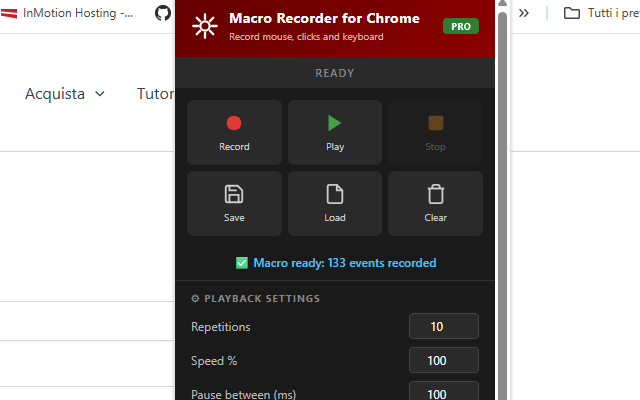
✨ Key Features at a Glance
| Feature | Description |
|---|---|
| 🖱️ Record Everything | Mouse movements, clicks, double clicks, keyboard input, text entries, scrolling |
| 🔴 Visual Cursor | Red arrow pointer follows the recorded path during playback |
| 🔗 Cross-Page Support | Recording and playback survive page navigations automatically |
| ⚡ Adjustable Speed | From 10% (slow motion) to 1000% (turbo) |
| 🔁 Custom Repetitions | Repeat the macro up to 5 times (Free) or unlimited (PRO) |
| ⏸️ Pause Between Runs | Add a custom delay in milliseconds between each repetition |
| ⏰ Scheduler | Start or stop playback at a specific date and time |
| 💾 Save & Load | Export macros as JSON files and import them anytime |
| ⌨️ Smart Key Replay | Backspace, Delete, Home, End, arrows and Ctrl+A all work correctly |
| 📝 Double-Click Selection | Word selection by double-click is fully reproduced during playback |
| 🌙 Dark Theme | Sleek, modern dark interface that’s easy on the eyes |
| 🪶 Lightweight | Zero background resource usage when idle |
🔗 Cross-Page Recording & Playback
This is where Macro Recorder for Chrome really stands out compared to similar tools. Most browser macro recorders stop working the moment you navigate to a different page. This one doesn’t. During recording, if you click a link that loads a new page, the extension automatically flushes all captured events to the background, re-injects itself into the new page, and keeps recording without any interruption. During playback, the extension tracks exactly which event it was executing. When a click triggers a page navigation, the background script waits for the new page to finish loading, re-injects the playback engine, and resumes from the exact point where it left off. This makes it ideal for automating workflows that span multiple pages — filling a form on page 1, clicking submit, then interacting with page 2, and so on.
⚡ Playback Speed & Repetitions
The extension gives you full control over how your macro is replayed:
| Setting | Range | Use Case |
|---|---|---|
| Speed | 10% — 1000% | Slow motion for debugging, turbo for rapid automation |
| Repetitions | 1 — 99,999 | Run the macro as many times as needed |
| Pause Between | 0 — 999,999 ms | Wait between repetitions for pages to load |
At 100% speed, the macro replays at the exact same pace you recorded it. Bump it up to 500% or 1000% to fly through repetitive tasks in a fraction of the time. Or slow it down to 10% if you need to carefully observe each step.
⏰ Built-in Scheduler
Need your macro to run while you’re away? The scheduler lets you set a start time and a stop time for automatic playback. Set it to run at 2:00 AM, 6:00 PM, or any date and time in the future. The extension uses Chrome’s alarm API to trigger playback right on schedule. This is perfect for tasks that need to run at specific times — periodic data checks, scheduled form submissions, or timed interactions on websites.
💾 Save & Load Macros
Every recorded macro can be saved as a JSON file and loaded back at any time. This means you can: 🗂️ Build a library of your most-used macros 👥 Share macros with colleagues or team members 💻 Transfer macros between computers 🔄 Back up your automations for safekeeping The JSON format is human-readable, so advanced users can even edit macros manually to fine-tune timing or coordinates.
🎯 Who Is This For?
Macro Recorder for Chrome is designed for anyone who does repetitive work in the browser: 🔹 QA testers — Click through the same test flow 50 times without lifting a finger 🔹 Data entry operators — Automate form filling across multiple pages 🔹 Digital marketers — Automate repetitive social media and platform tasks 🔹 Web developers — Quickly reproduce bugs and test user flows 🔹 E-commerce managers — Automate inventory checks and listing updates 🔹 Gamers — Automate repetitive actions in browser-based games 🔹 Students & researchers — Speed up repetitive data collection from websites 🔹 Anyone — If you click the same things every day, this is for you
🆓 Free vs PRO
| Feature | 🆓 Free | ⭐ PRO |
|---|---|---|
| Record mouse & keyboard | ✅ | ✅ |
| Visual cursor playback | ✅ | ✅ |
| Cross-page recording & playback | ✅ | ✅ |
| Adjustable speed (10%–1000%) | ✅ | ✅ |
| Save & load macros | ✅ | ✅ |
| Scheduler | ✅ | ✅ |
| Repetitions | Up to 5 | Unlimited |
The free version includes every feature — the only limitation is the number of repetitions (max 5). Upgrade to PRO by entering an unlock code directly in the extension panel, no account needed.
🔒 Privacy & Security
Your privacy matters. Macro Recorder for Chrome: 🔹 Works entirely locally in your browser 🔹 Never sends data to external servers 🔹 No account required 🔹 No tracking or analytics 🔹 Macros and settings are stored only in your browser’s local storage
⬇️ Download
Ready to stop repeating yourself? Install Macro Recorder for Chrome for free: 👉 Download from Chrome Web Store
🖥️ Need Something More Powerful? Try MouseKey Recorder Advanced
Macro Recorder for Chrome is great for browser-based automation, but it works only inside Chrome tabs. If you need to automate actions outside the browser — on your desktop, in native applications, across multiple programs — you need a dedicated desktop solution.
MouseKey Recorder Advanced is a professional Windows macro recorder that captures and replays mouse and keyboard actions system-wide. It works everywhere — on your desktop, in any application, across multiple windows and monitors. Key advantages over the Chrome extension:
🔹 System-wide recording — Works in any application, not just the browser
🔹 Global hotkeys — Start/stop recording and playback from anywhere using F9, F10, ESC
🔹 Pixel-perfect mouse control — Full DPI-aware cursor positioning across all monitors
🔹 Advanced scheduling — More flexible timer and scheduling options
🔹 Unlimited repetitions — Run your macros as many times as needed
🔹 Native performance — Desktop application with faster execution and lower latency
🔹 Multi-monitor support — Seamlessly works across multiple screens If your automation needs go beyond the browser, MouseKey Recorder Advanced is the professional upgrade.


